
WELCOME TO THEInstaller Guide
Since you already have the installer file downloaded, this page will walk you through the setup process step by step.
Just follow the steps below and your program will be ready in no time — simple, smooth, and stress-free.
STEP 1Begin with the installer
Open the installer file you downloaded. A splash screen will gently appear.

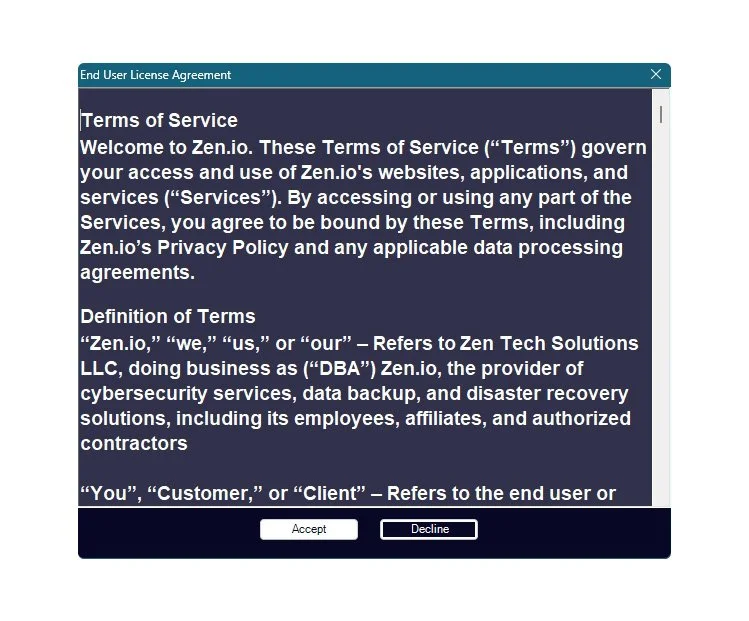
STEP 2Begin with the Accept the EULA
The End User License Agreement (EULA) will be displayed. Click Accept to move forward.
STEP 3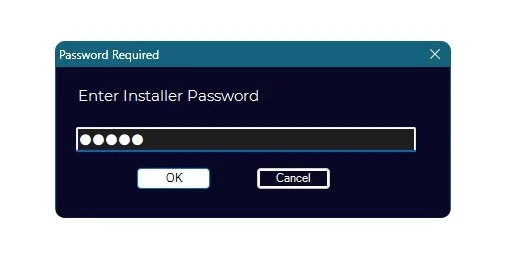
Enter your password
When prompted, enter the password provided to you via email. This unlocks the installation process.
STEP 4Installation starts
Once the password is confirmed, the installer will flow smoothly into the installation phase.

STEP 5Follow the product path
Depending on your product, you’ll see one of the following prompts:
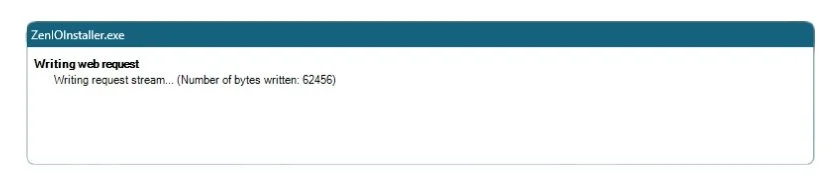
A small window may display
“writing web request.”
Next, a prompt will appear asking permission for SNAPAgent
to make changes on your device. Click Yes.
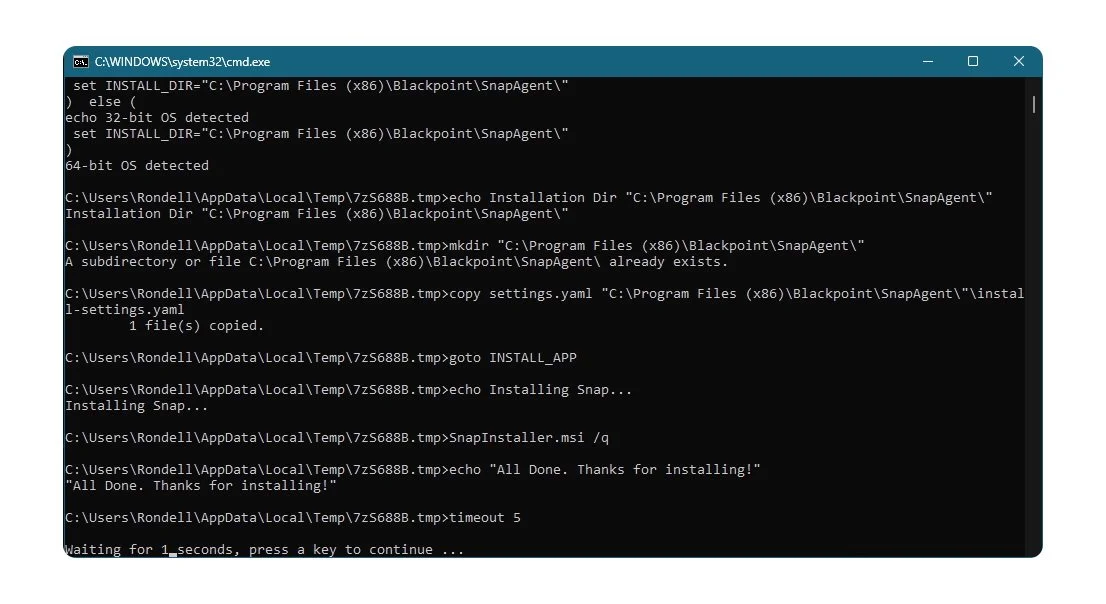
A cmd.exe window will briefly open as part of the process — this is normal.
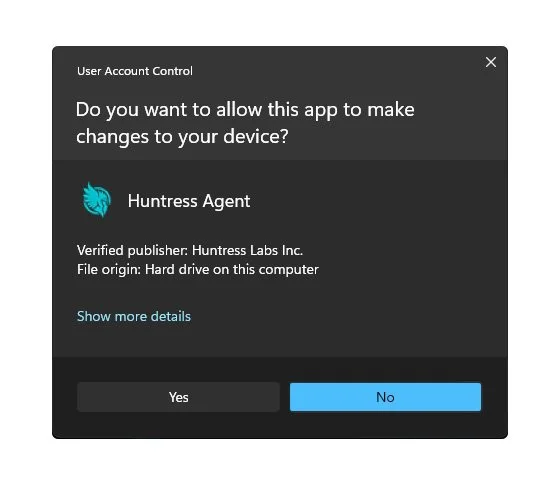
A prompt will appear asking permission for Huntress Agent
to make changes on your device. Simply click Yes to continue.

STEP 6Completion
When the steps are finished, the installer will close on its own. Your product is now ready — set up with clarity, ease, and peace of mind.

That’s it — your product is now installed and ready to use.
Simple and seamless, with full protection set up to give you complete peace of mind.